Generally in the Non-Disclosed account structure, your clients will do their own trading. Trades can be placed by the master users for any client account to which they are assigned. This can be done by selecting the account from the drop-down menu in the Account column of the TWS. In addition, IB does offer Brokers access to our powerful allocation algorithms which allow the entry of a single order which will allocate across multiple accounts. In order to gain access, please contact your sales representative. For further detail on allocations, please refer to the TWS User's Guide.
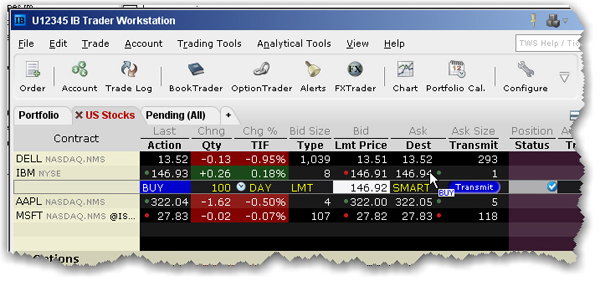
You create an order from the Quote Monitor by clicking the bid or ask on the ticker line of the asset you want to trade. TWS automatically creates the order directly beneath the related ticker. We call this a double-line display, and it’s helpful to understand that the double row of headers along the top of the window corresponds to the double-line market data/order row display in the body of the window. The column headings in the top row correspond to data in ticker line.
Imagine now that I click the Ask price in the IBM ticker line. An order to buy 100 shares of IBM stock is created directly below the ticker, and the column titles on the bottom row apply to these fields, with the Allocation = Group 1, Method = Avail, TIF = DAY and so on.
To create and transmit an order
Click the "Ask" or "Bid" price of an asset to create an Order Management line directly below the asset’s ticker.
Clicking the Ask will create a Buy order.
Clicking the Bid will create a Sell order.
Use the Allocation field dropdown list to select an Account Group, Account Profile, a single account or All accounts. or Right-click on the order and select Modify then select Share Allocation.
In the Allocation dialog box, select an Account Group in the Automatic Allocation area, an Account Profile in the Manual Allocation area, or select a single account.
For the Account Group, modify the allocation method if necessary. If you choose the PctChange method, enter a positive or negative value in the Percentage field. All other automatic allocation methods are calculated using the order size.
If you use an Allocation Profile, select a group name.
To allocate all shares to one account, select a single account.
Click OK to complete the order.
To Transmit, click the red "T" in the Transmit field.
Note: The default values in the order line come from the active Preset for the asset type. You can modify these defaults and create new strategies from the Presets section of Global Configuration. For detailed information about these items, see the TWS Users’ Guide.