You are here: Configuration > Modify User Access Rights
Modify User Access Rights
You modify Account Management access rights for an existing user on the User Access Rights page. For example, if you add a user to your account, you may want to modify the user's access rights at a later date.
To modify access rights for an existing user
Log In to Account Management.
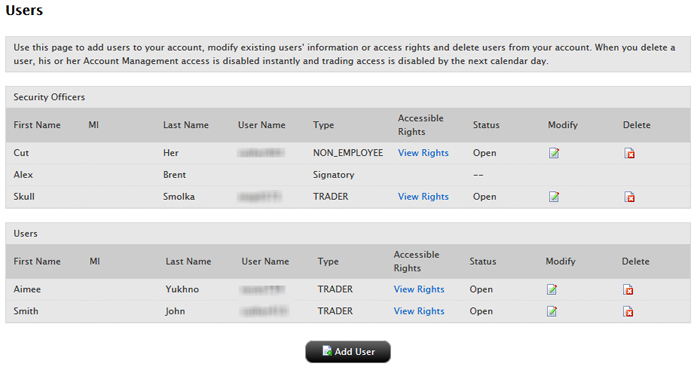
Click Manage Account > Access Rights > Users.
Click the Modify icon for the user whose access rights you want to modify.
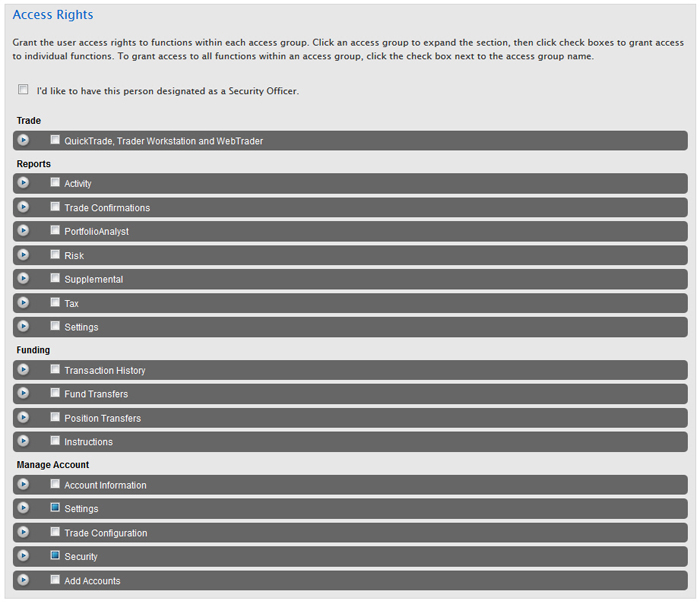
On the next page, modify the access rights for the user by selecting or deselecting check boxes next to the available Account Management functions, including changing any authorization privileges you may have assigned or need to assign. Click Continue.
To designate the user as a Security Officer, click the I'd like to have this person designated as a Security Officer. check box.
Click an access group to expand the section, then click check boxes to grant access to individual functions.
To grant access to all functions within an access group, click the check box next to the access group name. If a function is not checked, the user will not be able to access the function in Account Management:
Verify that all the information is correct, then click Continue.
If you need to make further changes, click Back, then make corrections before submitting.
Enter the confirmation number sent to you via email, then click Continue.
If you have not received a confirmation number, click Request Confirmation Number to have a confirmation number sent to your email address on record.